

Before You Begin
Make sure you have administrator access to Microsoft Teams for your organization.Depending on your organization’s security settings, you may need to create the team in the Microsoft Teams admin center instead.
Create the Team
1
Open Microsoft Teams
Go to Microsoft Teams and sign in with your organization’s Microsoft account.
2
Open Your Teams List
In the left sidebar, select See all your teams at the bottom of your teams list.
3
Create a New Team
On the Your teams and channels page, select Create team in the top-right corner. In the menu that appears, select Create team again.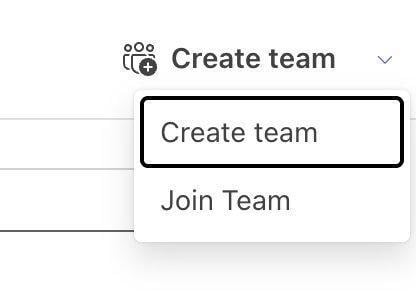
4
Configure the Team
Enter the following details:
- Team name: Emanate AI
- Description: Communication channel with the Emanate AI team
- Team type: Private
- First channel name: General
5
Open Team Options
Find Emanate AI in the left sidebar. Select the three dots next to the team name to open More team options.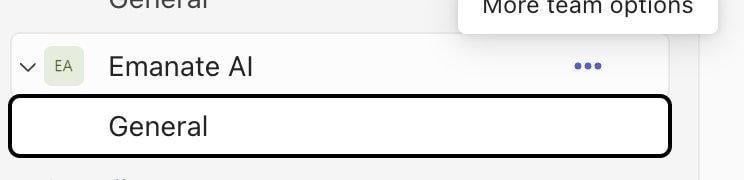
6
Manage the Team
Select Manage team from the menu.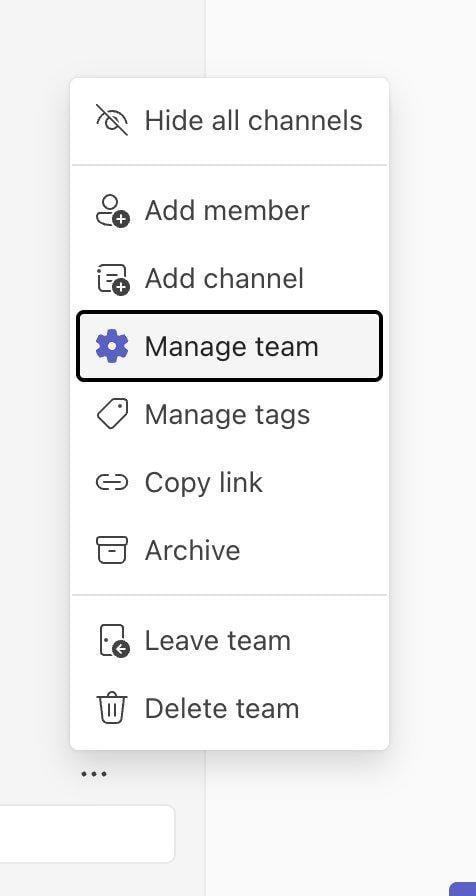
7
Open the Members Tab
At the top of the Manage Team page, select the Members tab.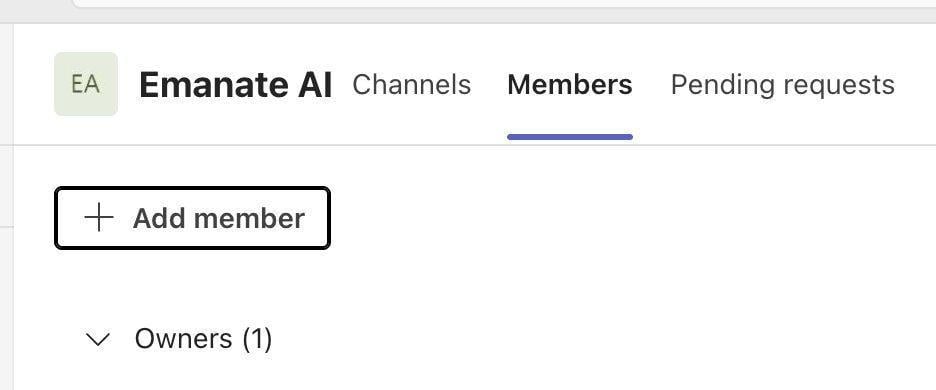
8
Add Emanate
Select Add member. Emanate will communicate the correct Emanate contact emails for your organization. They will be in the format: team@corp.emanate.ai. Once received, enter the email address provided by Emanate, then follow the prompts to send the invitation.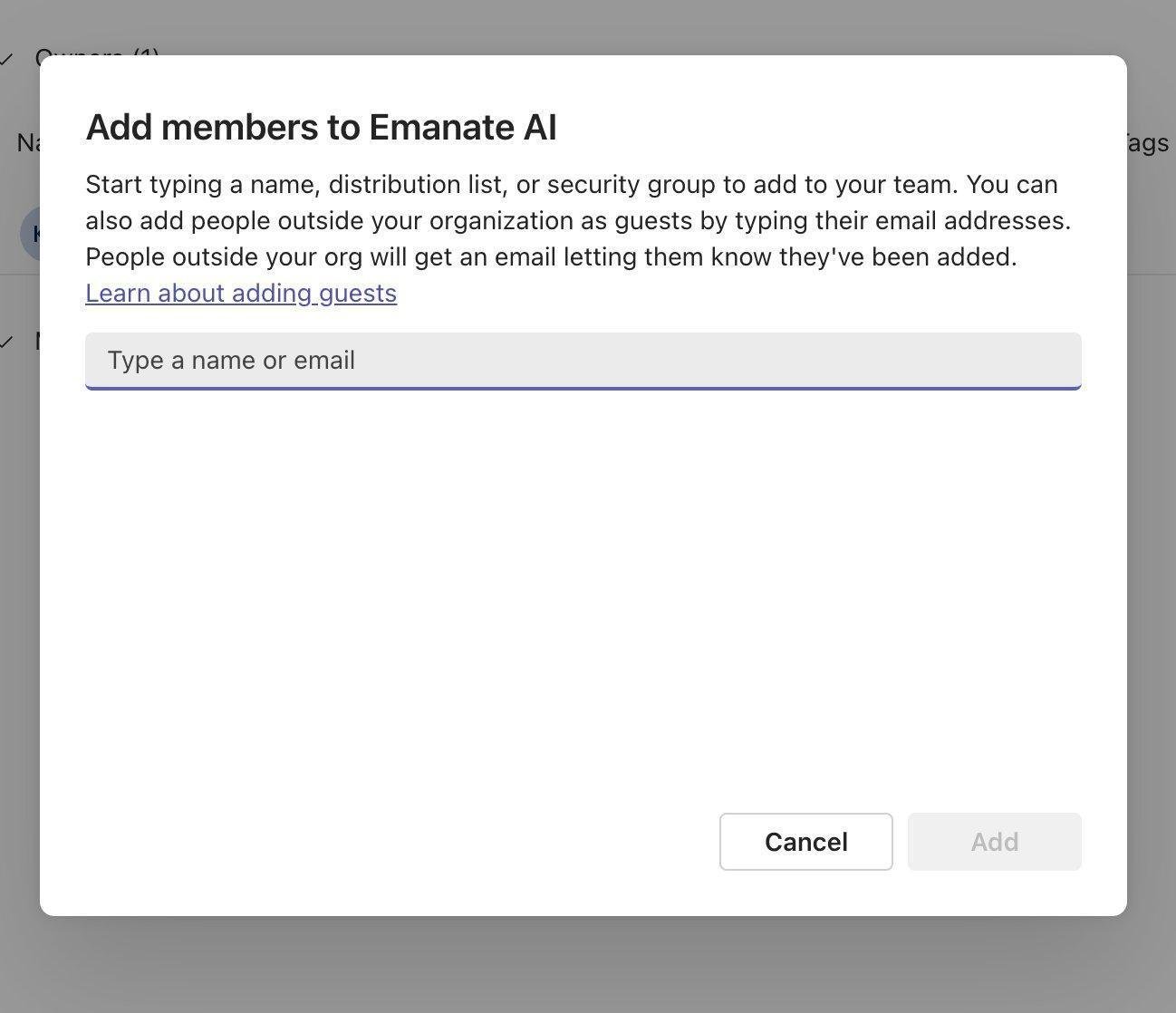
You’re All Set
After the Emanate team member accepts the invitation, your team can communicate with Emanate in the General channel.Microsoft Emanate App
Add the Emanate app to your Teams channel