

Before You Begin
You need a team and channel in Microsoft Teams, plus permission to add apps.Don’t have a channel yet? See Create a Microsoft Teams Channel. Depending on your organization’s settings, a Teams administrator may need to install the app the first time.
Add the App
1
Open Apps
In Microsoft Teams, select Apps in the left sidebar.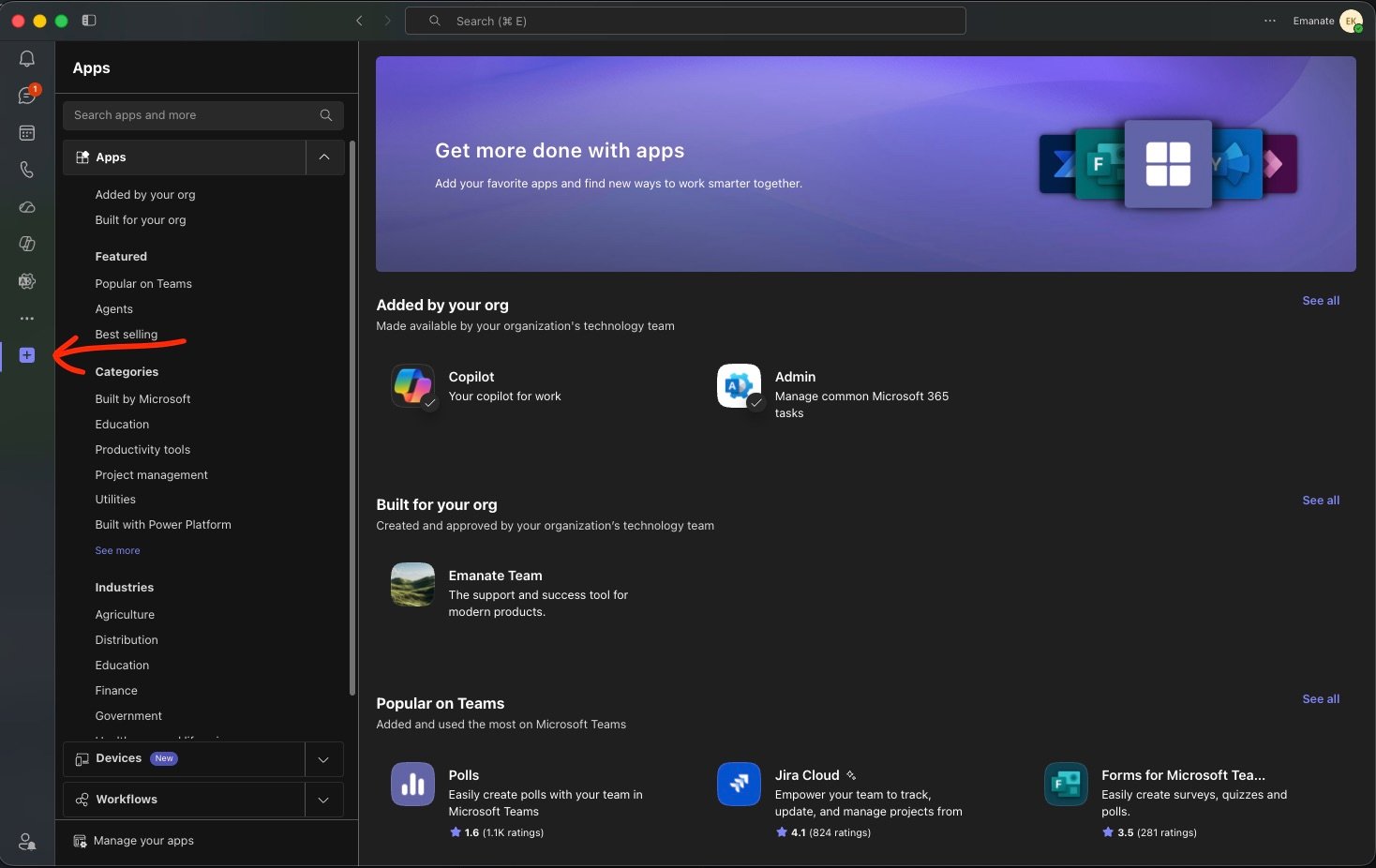
2
Search for Emanate
In the search bar, type Emanate. Several results may appear. Select Emanate, not Emanate Security or Emanate Team.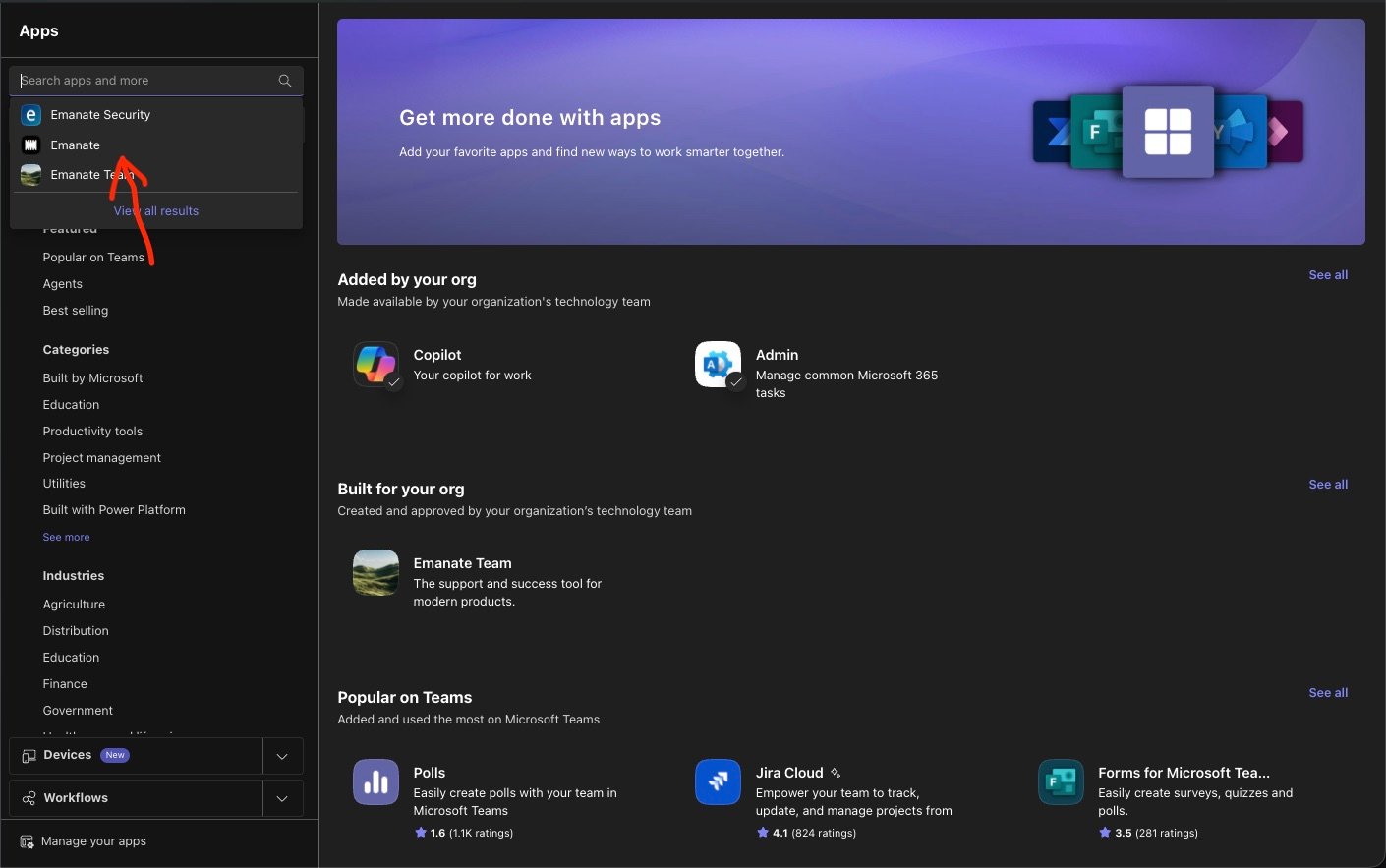
3
Add the App
On the Emanate app page, select Add. If Teams asks which team to add it to, choose the team and channel you want the digest in.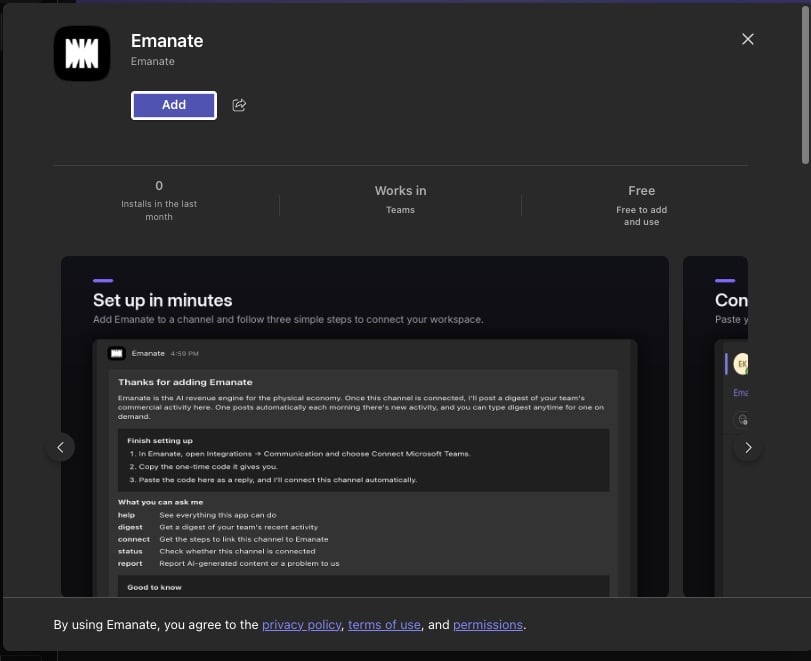
Connect Your Workspace
After you add the app, it posts a welcome message in the channel. Finish the connection from Emanate:1
Get a Connection Code
In Emanate, go to Integrations, open the Communication tab, and choose Connect Microsoft Teams. You’ll get a one-time code that’s good for 30 minutes.
2
Paste the Code into the Channel
Back in Teams, send the code to the Emanate app in that channel. Start the message with
@Emanate so the app sees it. The connection turns active and binds to that channel.You’re All Set
Type@Emanate digest to post your first digest. From then on, one also arrives automatically each morning there’s new activity.
Microsoft Teams
What the digest includes and how to use the app
Create a Teams Channel
Set up a dedicated Teams space for Emanate