> ## Documentation Index
> Fetch the complete documentation index at: https://docs.emanate.ai/llms.txt
> Use this file to discover all available pages before exploring further.
# Create a Microsoft Teams Channel
> Create a dedicated Microsoft Teams space for working with Emanate
## Before You Begin
Make sure you have administrator access to Microsoft Teams for your organization.
Depending on your organization's security settings, you may need to create the team in the [Microsoft Teams admin center](https://admin.teams.microsoft.com/) instead.
## Create the Team
Go to [Microsoft Teams](https://teams.cloud.microsoft/) and sign in with your organization's Microsoft account.
In the left sidebar, select **See all your teams** at the bottom of your teams list.
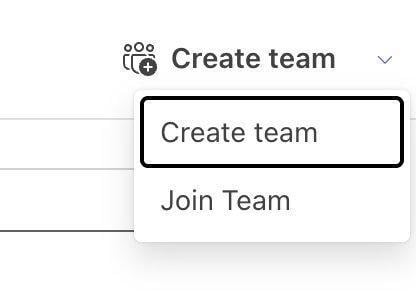
On the **Your teams and channels** page, select **Create team** in the top-right corner. In the menu that appears, select **Create team** again.
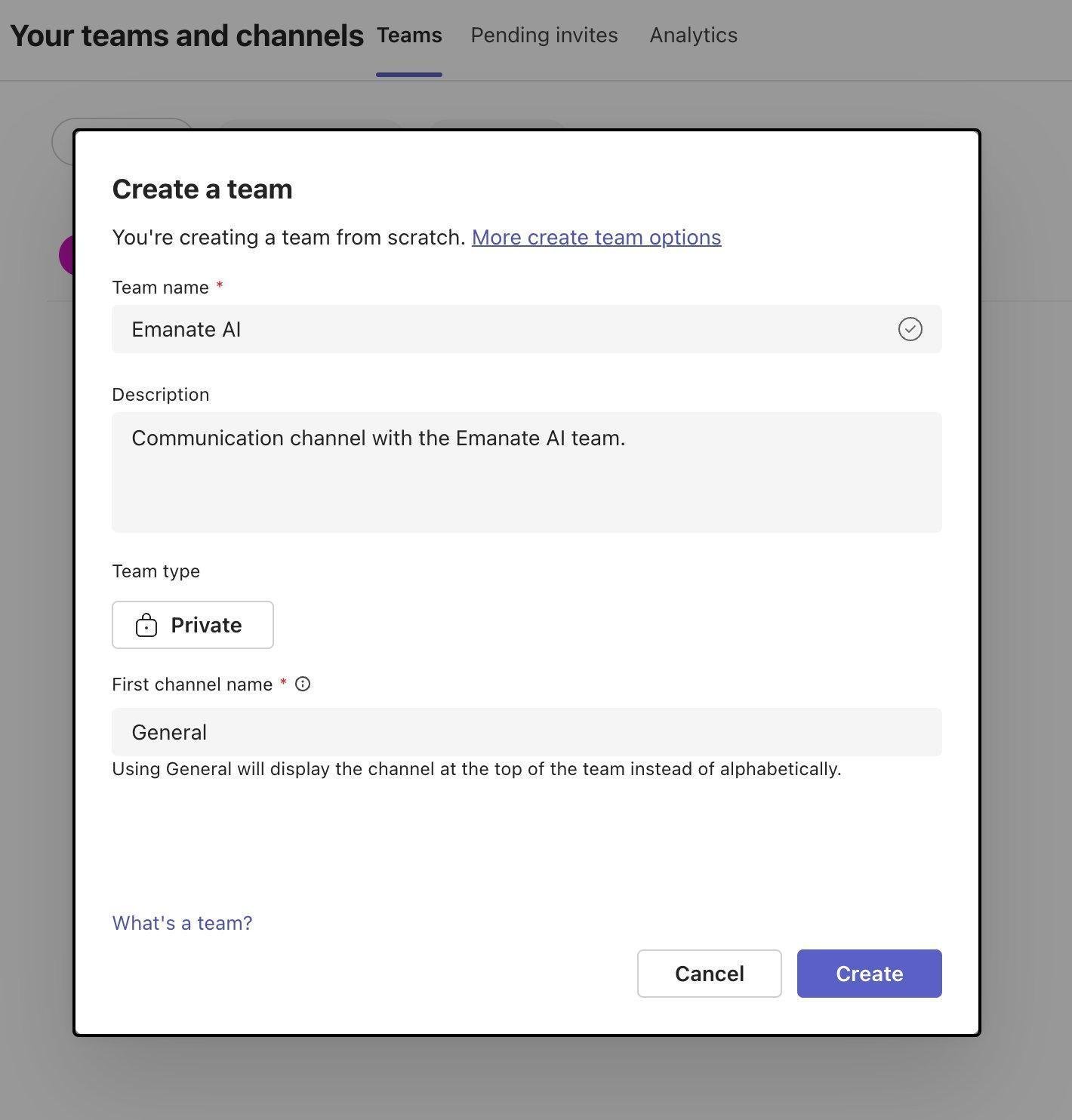
 Enter the following details:
* **Team name:** Emanate AI
* **Description:** Communication channel with the Emanate AI team
* **Team type:** Private
* **First channel name:** General
Select **Create** when you are finished.
Enter the following details:
* **Team name:** Emanate AI
* **Description:** Communication channel with the Emanate AI team
* **Team type:** Private
* **First channel name:** General
Select **Create** when you are finished.
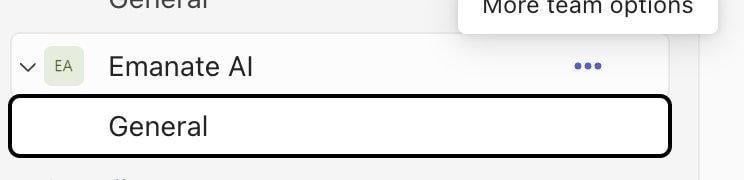
 Find **Emanate AI** in the left sidebar. Select the three dots next to the team name to open **More team options**.
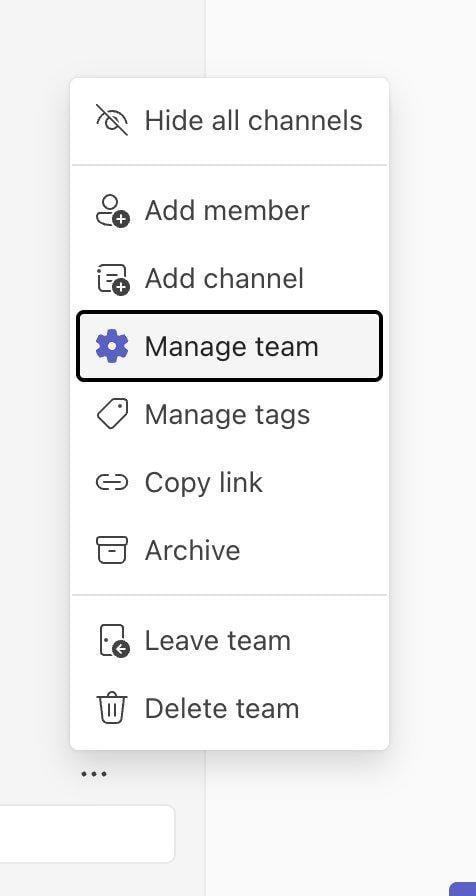
 Select **Manage team** from the menu.
 At the top of the **Manage Team** page, select the **Members** tab.
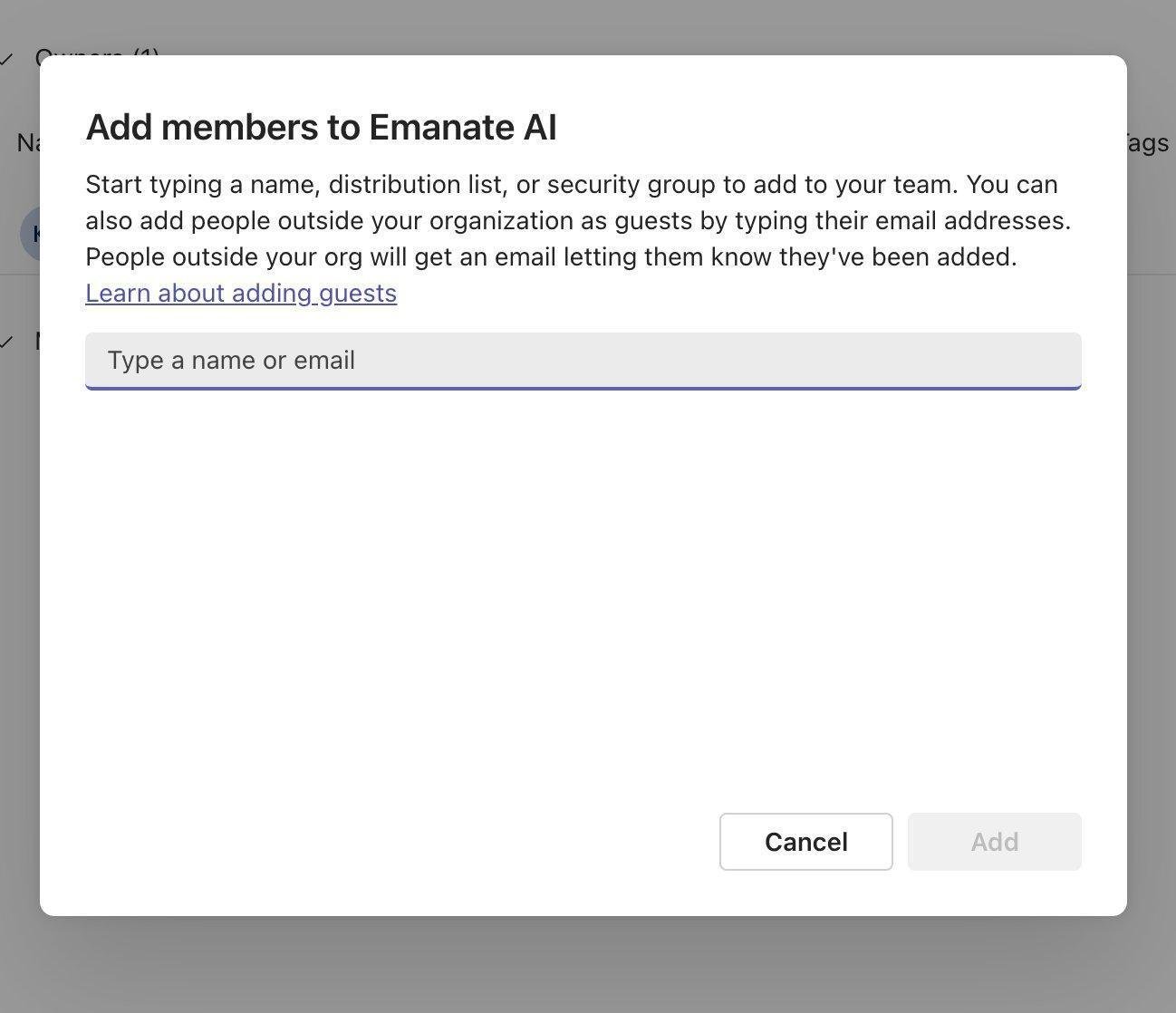
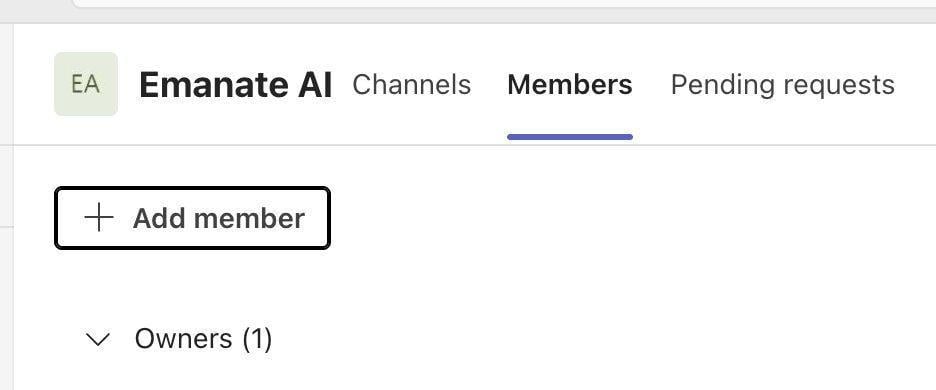 Select **Add member**. Emanate will communicate the correct Emanate contact emails for your organization. They will be in the format: [x@corp.emanate.ai](mailto:x@corp.emanate.ai). Once received, enter the email address provided by Emanate, then follow the prompts to send the invitation.
 ## You're All Set
After the Emanate team member accepts the invitation, your team can communicate with Emanate in the **General** channel.
Complete the rest of your Emanate setup
Learn the terminology used in Emanate
## You're All Set
After the Emanate team member accepts the invitation, your team can communicate with Emanate in the **General** channel.
Complete the rest of your Emanate setup
Learn the terminology used in Emanate