> ## Documentation Index
> Fetch the complete documentation index at: https://docs.emanate.ai/llms.txt
> Use this file to discover all available pages before exploring further.
# Microsoft Emanate App
> Add the Emanate app to your Microsoft Teams channel
The Emanate app posts a digest of your team's commercial activity into the Microsoft Teams channel you choose. Add it to the channel, then connect it to your Emanate workspace with a one-time code.
## Before You Begin
You need a team and channel in Microsoft Teams, plus permission to add apps.
Don't have a channel yet? See [Create a Microsoft Teams Channel](/getting-started/microsoft-teams-channel). Depending on your organization's settings, a Teams administrator may need to install the app the first time.
## Add the App
In Microsoft Teams, select **Apps** in the left sidebar.
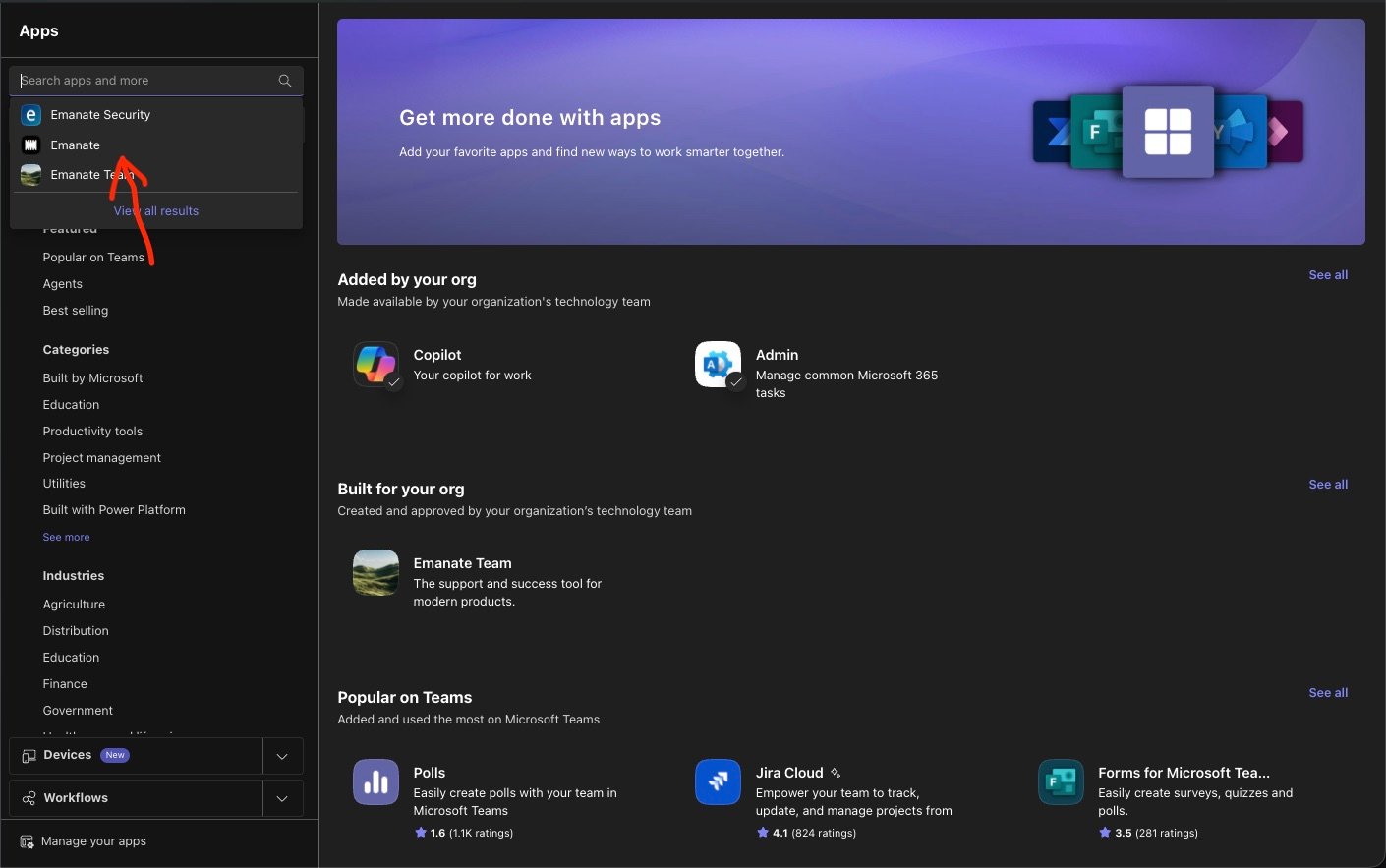
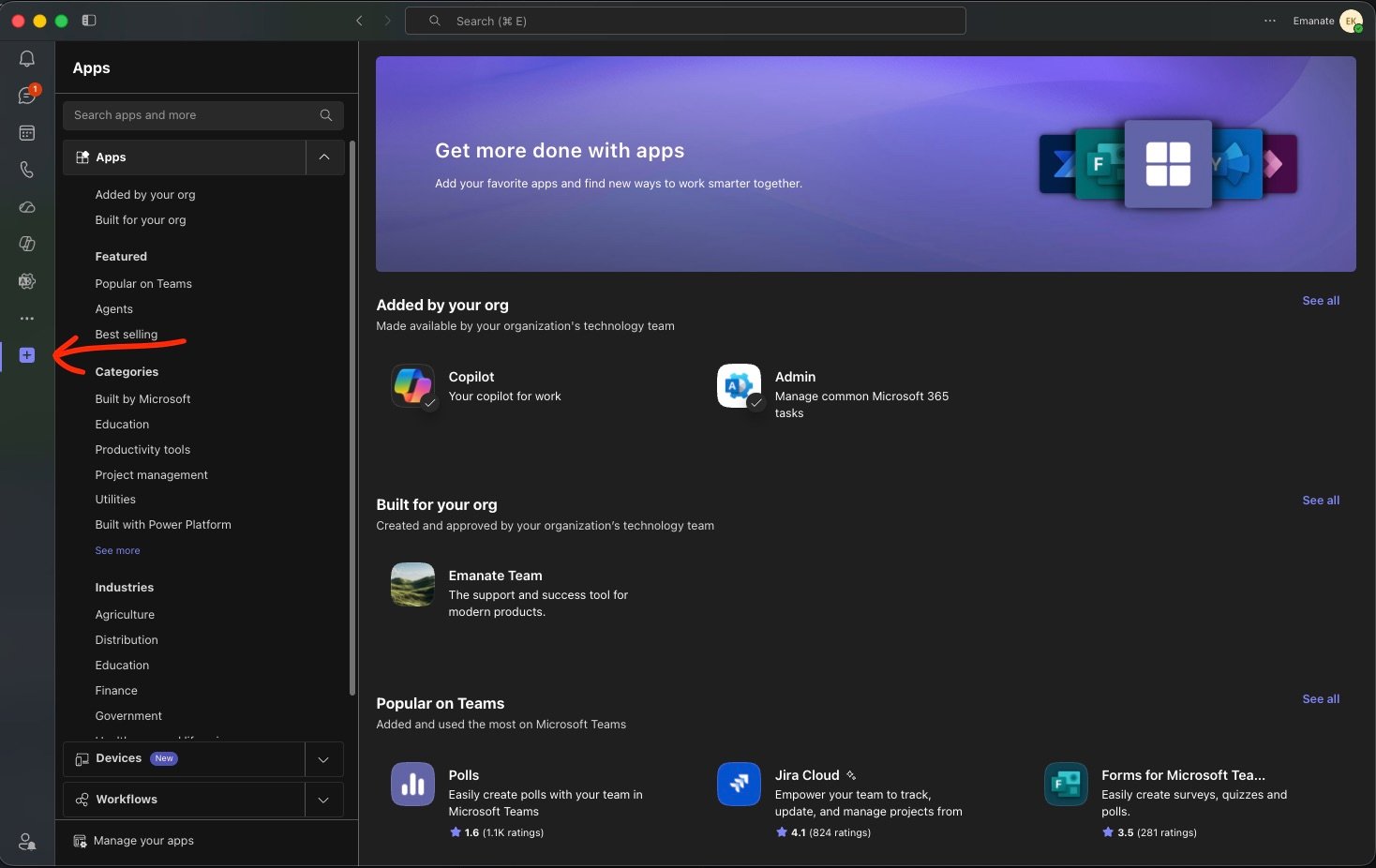 In the search bar, type **Emanate**. Several results may appear. Select **Emanate**, not **Emanate Security** or **Emanate Team**.
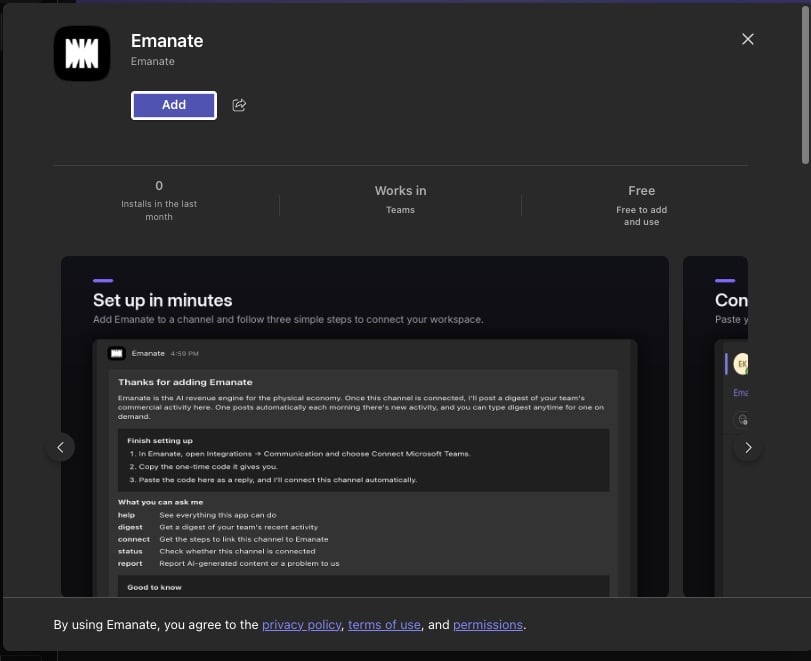
 On the Emanate app page, select **Add**. If Teams asks which team to add it to, choose the team and channel you want the digest in.
 ## Connect Your Workspace
After you add the app, it posts a welcome message in the channel. Finish the connection from Emanate:
In Emanate, go to **Integrations**, open the **Communication** tab, and choose **Connect Microsoft Teams**. You'll get a one-time code that's good for 30 minutes.
Back in Teams, send the code to the Emanate app in that channel. Start the message with `@Emanate` so the app sees it. The connection turns active and binds to that channel.
## You're All Set
Type `@Emanate digest` to post your first digest. From then on, one also arrives automatically each morning there's new activity.
What the digest includes and how to use the app
Set up a dedicated Teams space for Emanate
This documentation is built and hosted on [Mintlify](https://mintlify.com), a developer documentation platform.
## Connect Your Workspace
After you add the app, it posts a welcome message in the channel. Finish the connection from Emanate:
In Emanate, go to **Integrations**, open the **Communication** tab, and choose **Connect Microsoft Teams**. You'll get a one-time code that's good for 30 minutes.
Back in Teams, send the code to the Emanate app in that channel. Start the message with `@Emanate` so the app sees it. The connection turns active and binds to that channel.
## You're All Set
Type `@Emanate digest` to post your first digest. From then on, one also arrives automatically each morning there's new activity.
What the digest includes and how to use the app
Set up a dedicated Teams space for Emanate
This documentation is built and hosted on [Mintlify](https://mintlify.com), a developer documentation platform.